

Covve Scan integrates with Microsoft Dynamics Sales to streamline lead capture. Using this integration, captured leads, along with all their details, are transmitted to Dynamics Sales.
The Covve Scan user logins to its Dynamics Sales account via the Covve Scan app in order to enable the integration. As soon as the integration is enabled the user can send captured leads to Dynamics Sales either as a Contact or Lead. The app maps Covve Scan data to the appropriate Dynamics Sales Contact or Lead fields, ensuring seamless CRM integration.
How to enable the Dynamics Sales integration in Covve Scan
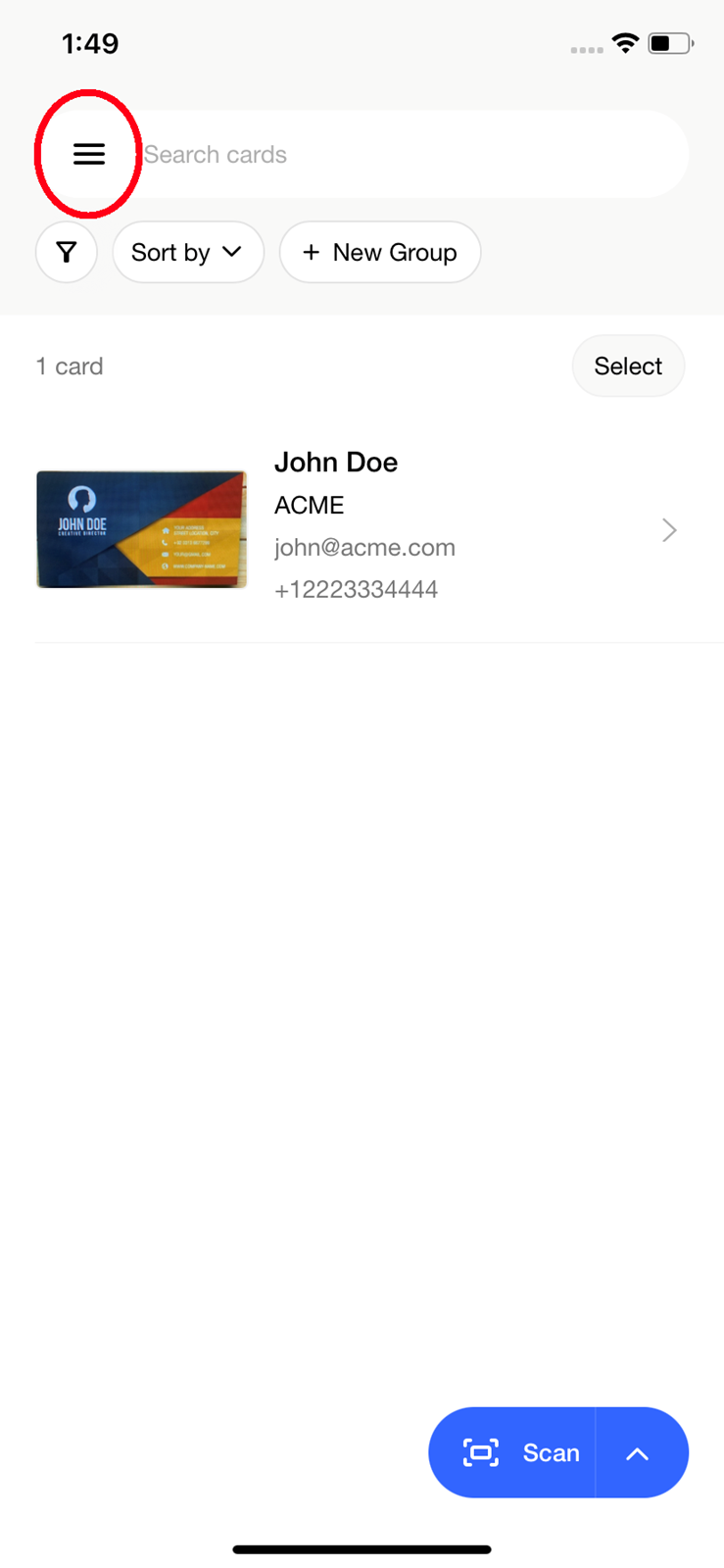
From the Covve Scan main page tap on the burger menu on the top left.
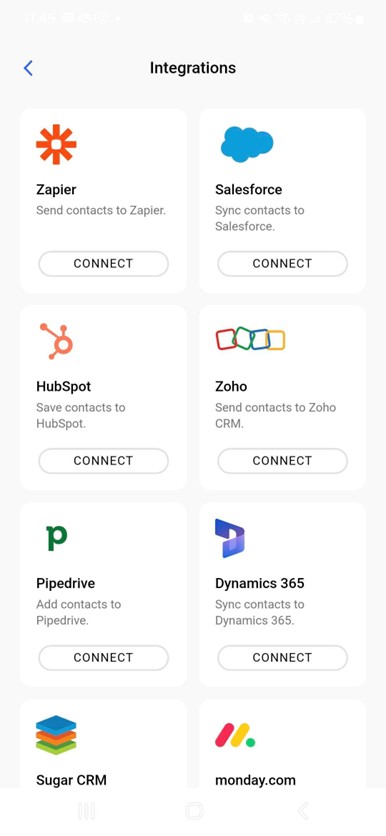
Go to Settings à Integrations and find the Dynamics one. Tap on Connect.
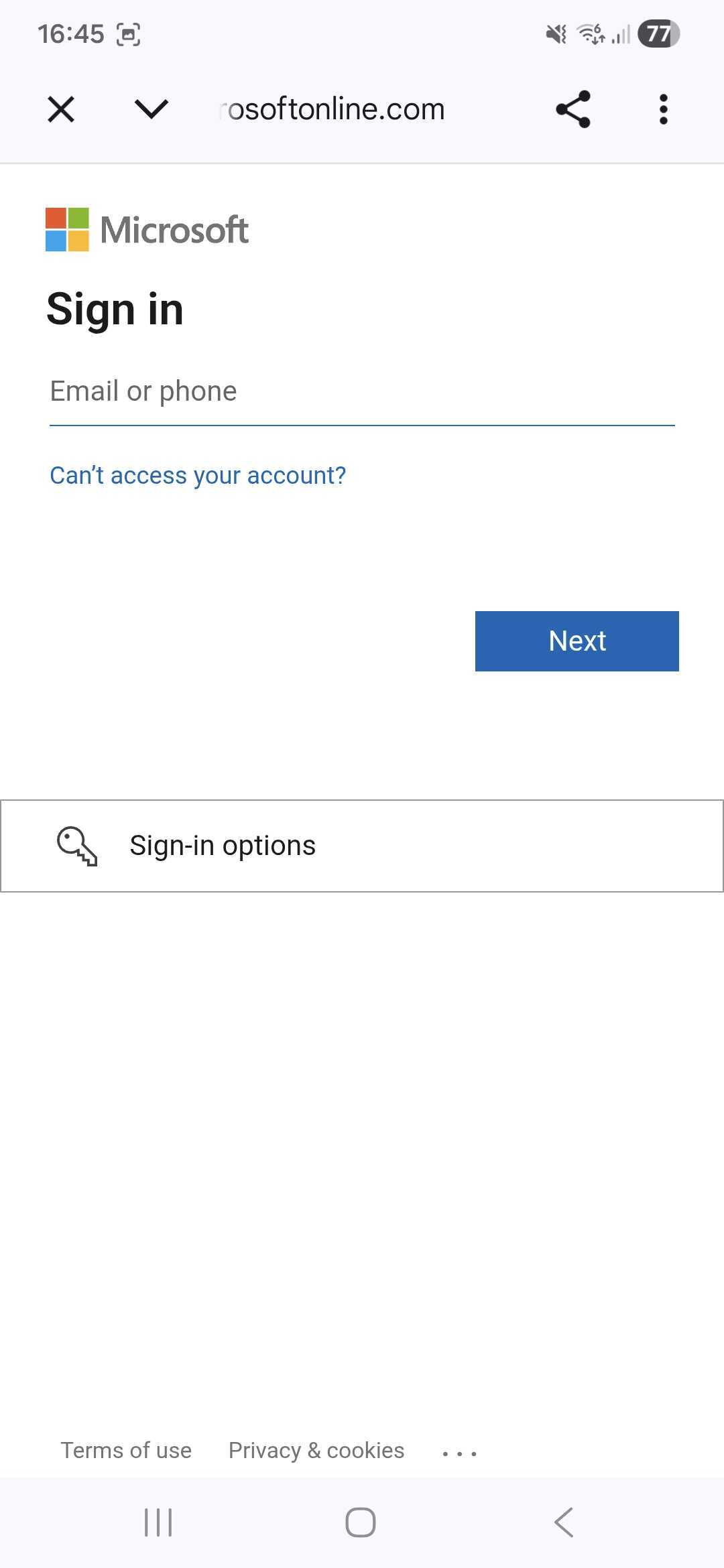
You will be redirected to a Microsoft login website. Login to Dynamics Sales using your Microsoft credentials.
Upon successful login you’ll return in the Covve Scan app and you’ll see that your Dynamics Sales account is connected.
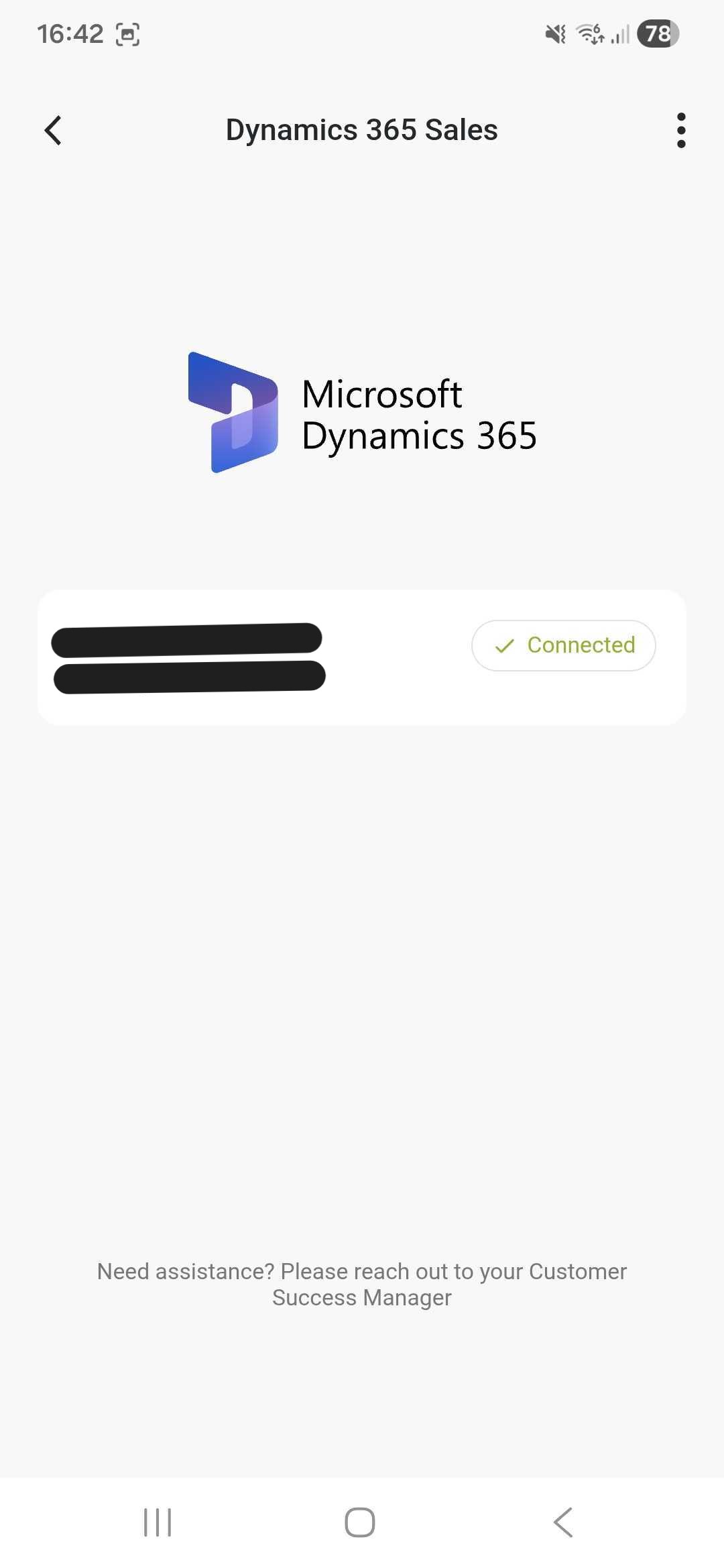
The integration is now set and ready to be used.
How to use the Dynamics Sales integration
Go to the Covve Scan homepage and scan a business card by taping on the Scan button on the bottom right of the screen. Upon successful scan, tap on the 3-dot menu on the bottom left of the contact. Tap on “Send to Dynamics Sales”.
Autosend to CRM
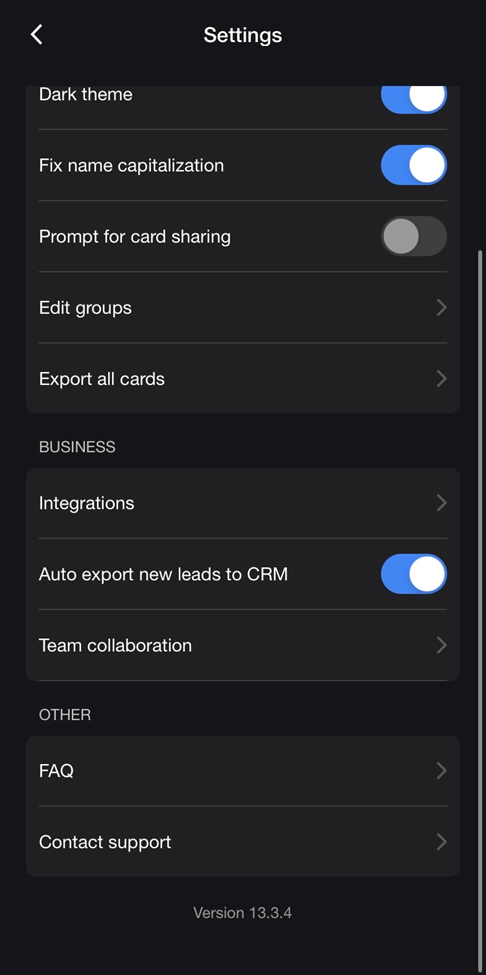
Enable the toggle button “Auto export new leads to CRM”.
Note:
1. You need to be connected to at least one CRM.
2. Existing leads will not be sent automatically to CRM. From the point the user enables the auto-send and onwards, every new lead will be automatically sent.
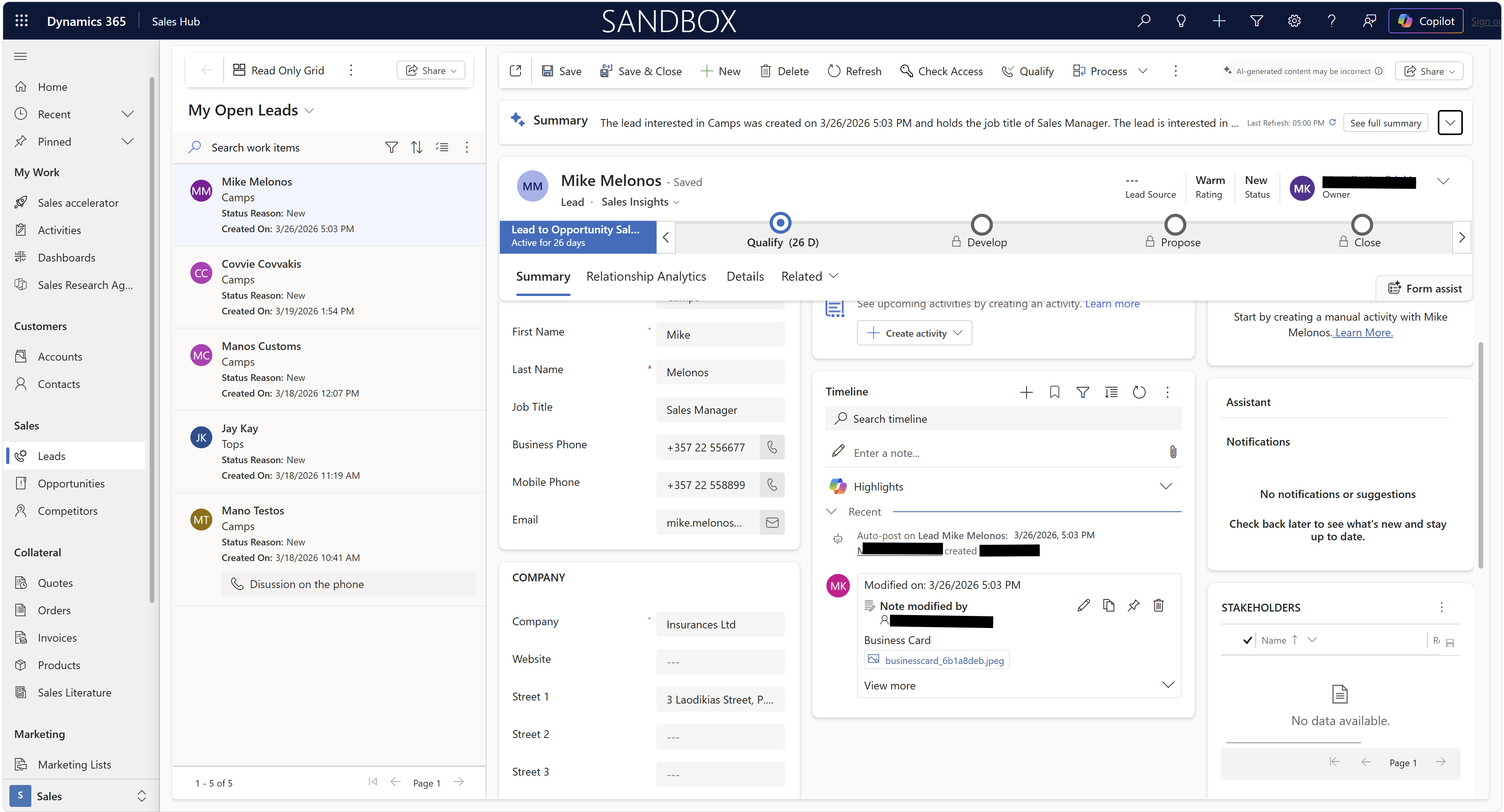
The exported leads are visible in the leads section of Dynamics Sales.
Duplicate lead/contact in CRM handling
We get the existing lead from Dynamics Sales and we fill in only the fields that are empty. Also, we create a note with all the new lead data we have, so the user can see the whole snapshot of data at the given time of the update, and we send it to Dynamics. On the Dyanmics platform the note appears on the Lead Timeline.
A push notification is also sent to the user that the contact was found and was updated.
Images of leads/contacts on CRMs
Only the front of the business card is sent.
Name of image file on CRMs: businesscard_[card id]
File format: jpeg
After a new lead/contact is successfully created and sent to Dynamics, we create a new file for the image, and we send it to Dynamics. It is visible in the Timeline of the Lead.
Data Transmitted
The mapping of Covve Scan data to Microsoft Dynamics Sales Lead is the below.
Covve Scan field | Dynamics Sales Lead field |
First part of Full Name | FirstName |
Last part of Full Name | LastName |
Company | CompanyName |
Job Title | JobTitle |
First Email | Email Address 1 |
First Phone | Telephone 1 |
Second Phone | MobilePhone |
Notes | Description |
Address | Address1 Line1 |
Address1 City | |
Address.State | Address1 StateOrProvince |
Address.PostalCode | Address1 PostalCode |
Address1 Country | |
Website | Website Url |
The mapping of Covve Scan data to Microsoft Dynamics Sales Contact is the below.
Covve Scan field | Dynamics Sales Contact field |
First part of Full Name | FirstName |
Last part of Full Name | LastName |
Job Title | JobTitle |
First Email | Email Address1 |
First Phone | Telephone 1 |
Second Phone | MobilePhone |
Notes | Description |
Address | Address1 Line1 |