

Covve Scan integrates with Pipedrive to streamline lead capture. Using this integration, captured leads, along with all their details, are transmitted to Pipedrive.
The Covve Scan user logins to its Pipedrive account via the Covve Scan app in order to enable the integration. As soon as the integration is enabled the user can send captured leads to Pipedrive as a Person. The app maps Covve Scan data to the appropriate Pipedrive Person fields, ensuring seamless CRM integration.
How to enable the Pipedrive integration
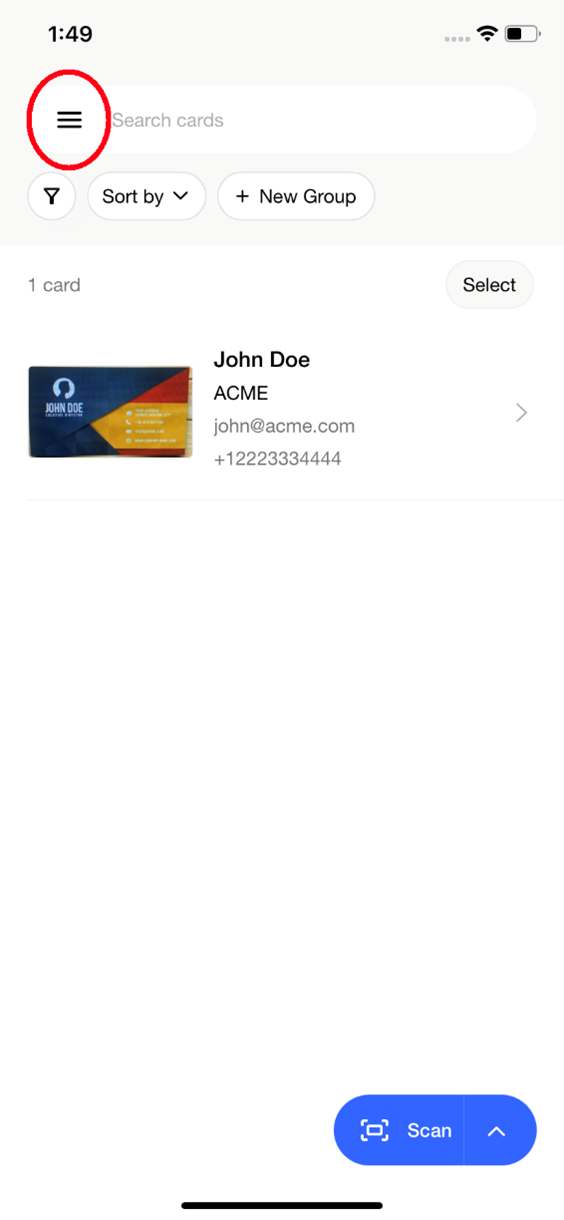
From the Covve Scan main page tap on the burger menu on the top left.
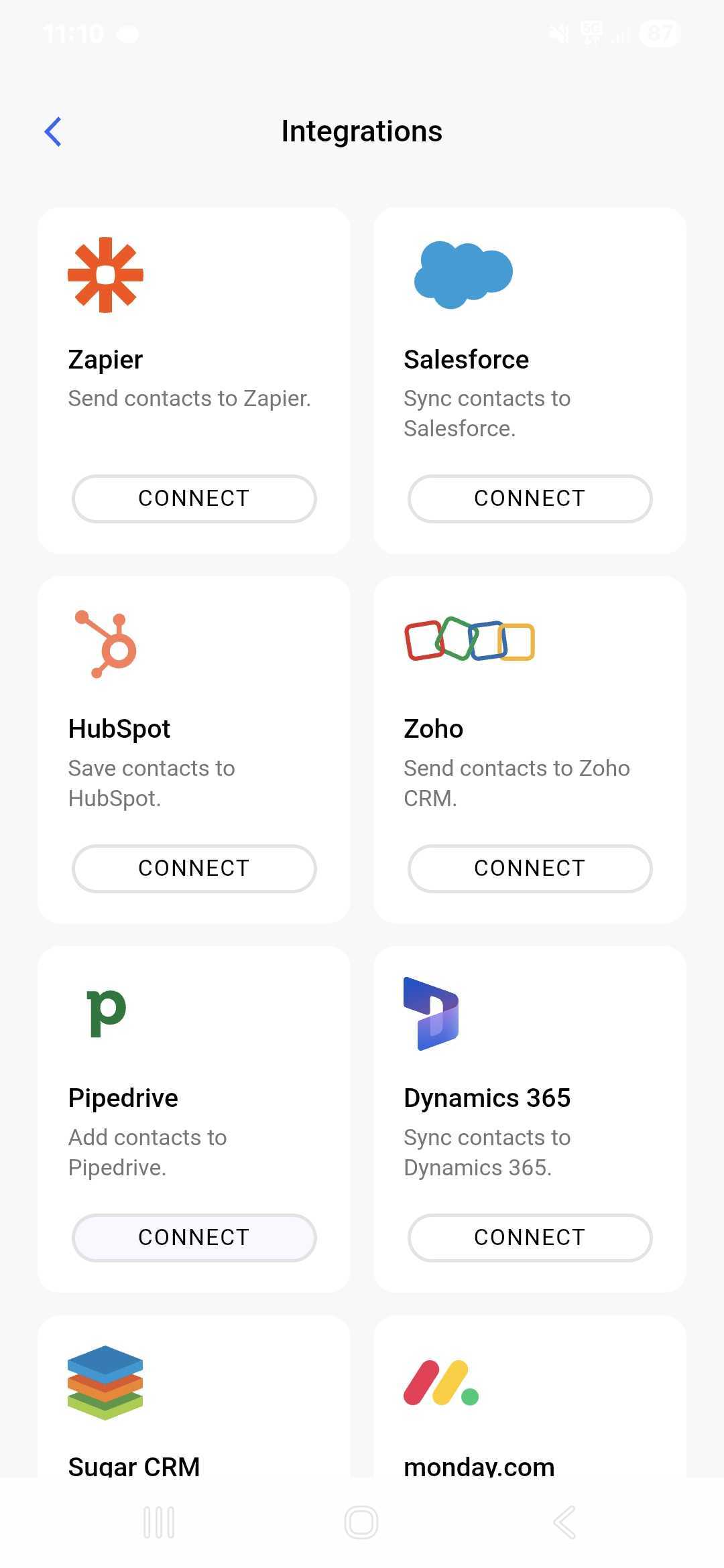
Go to Settings -> Integrations and find the Pipedrive one. Tap on Connect.
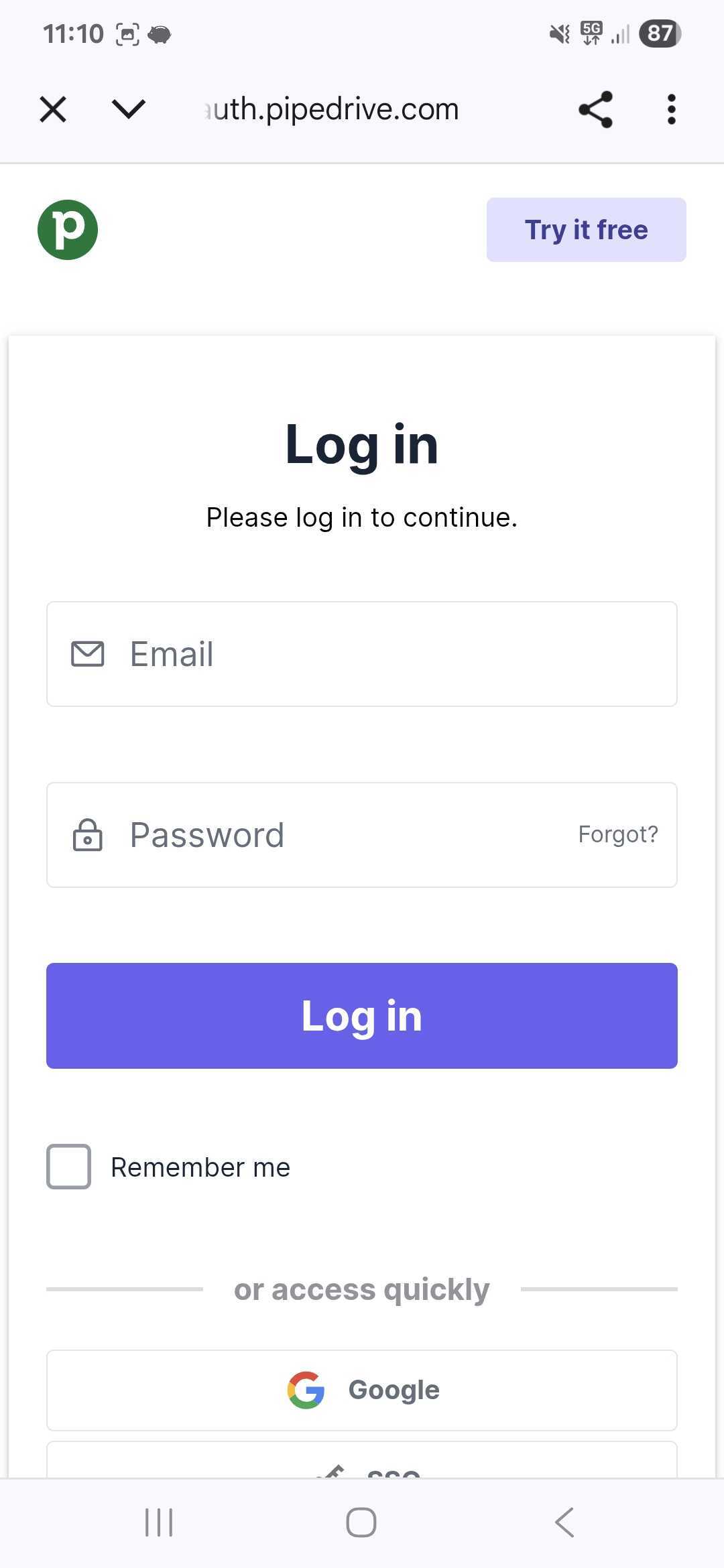
You will be redirected to a Pipedrive's website. Login to Pipedrive using your Pipedrive credentials.
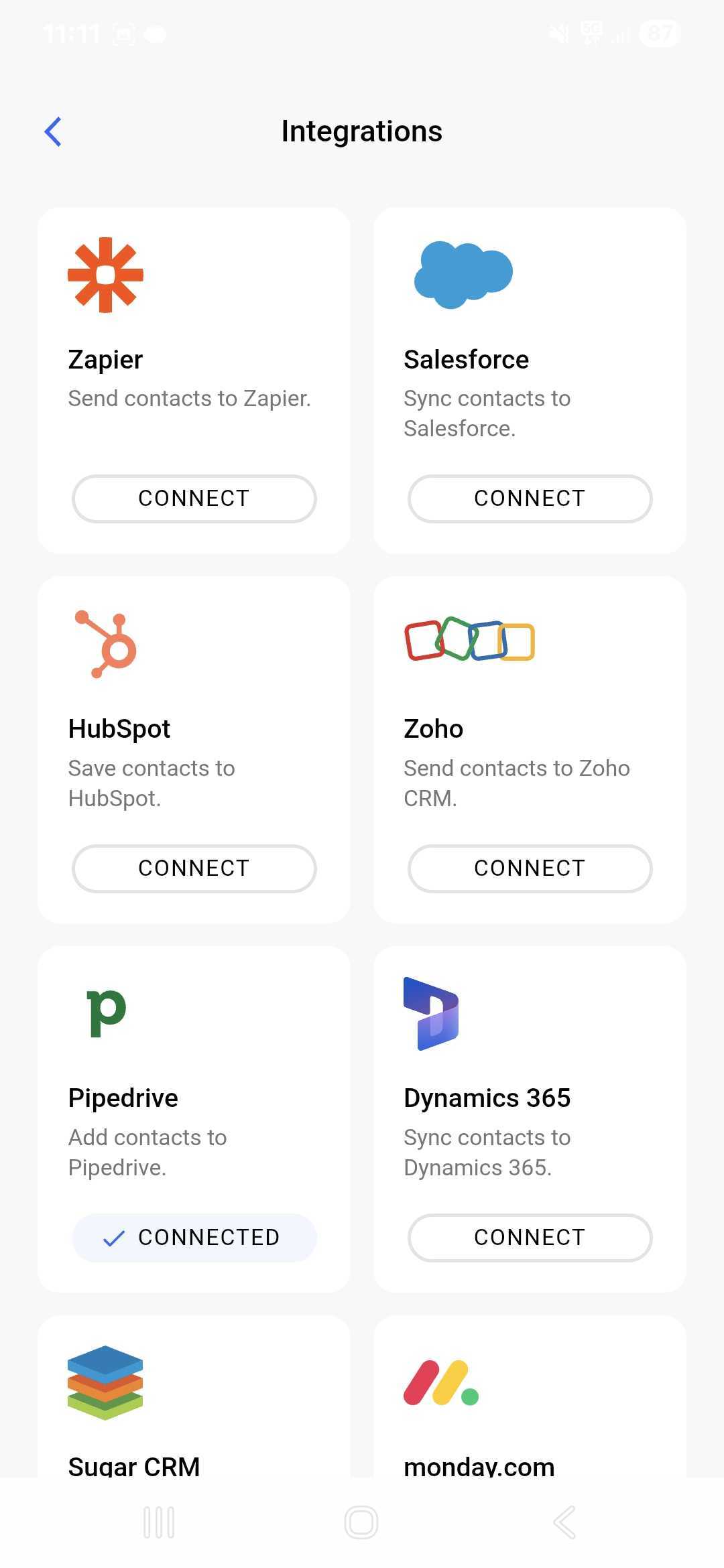
Upon successful login you’ll return in the Covve Scan app and you’ll see that your Pipedrive account is connected.
Tap on the Pipedrive tile and visit the informational integration page in order to see the logged in user.
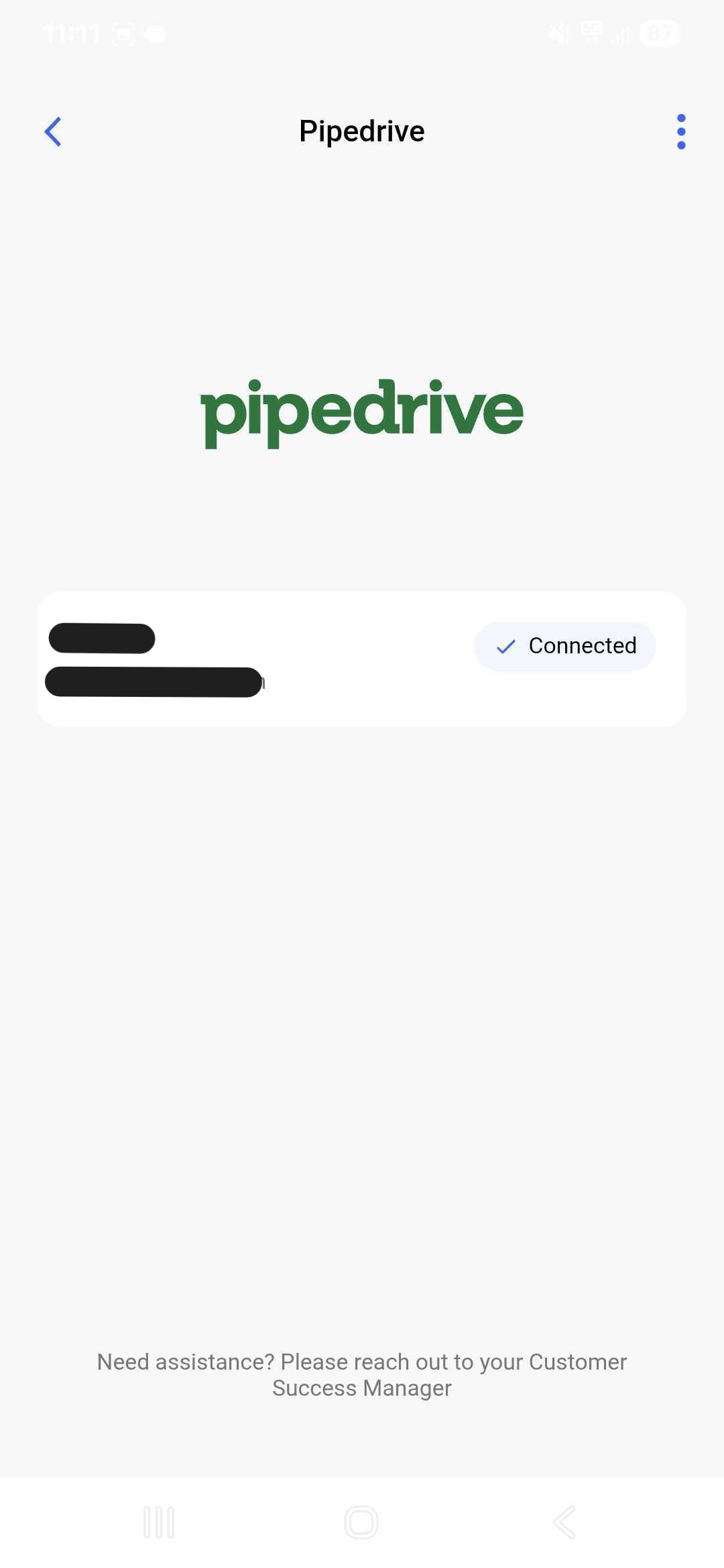
The integration is now set and ready to be used.
How to use the Pipedrive integration
Go to the Covve Scan homepage and scan a business card by taping on the Scan button on the bottom right of the screen. Upon successful scan, tap on the 3-dot menu on the bottom left of the contact.
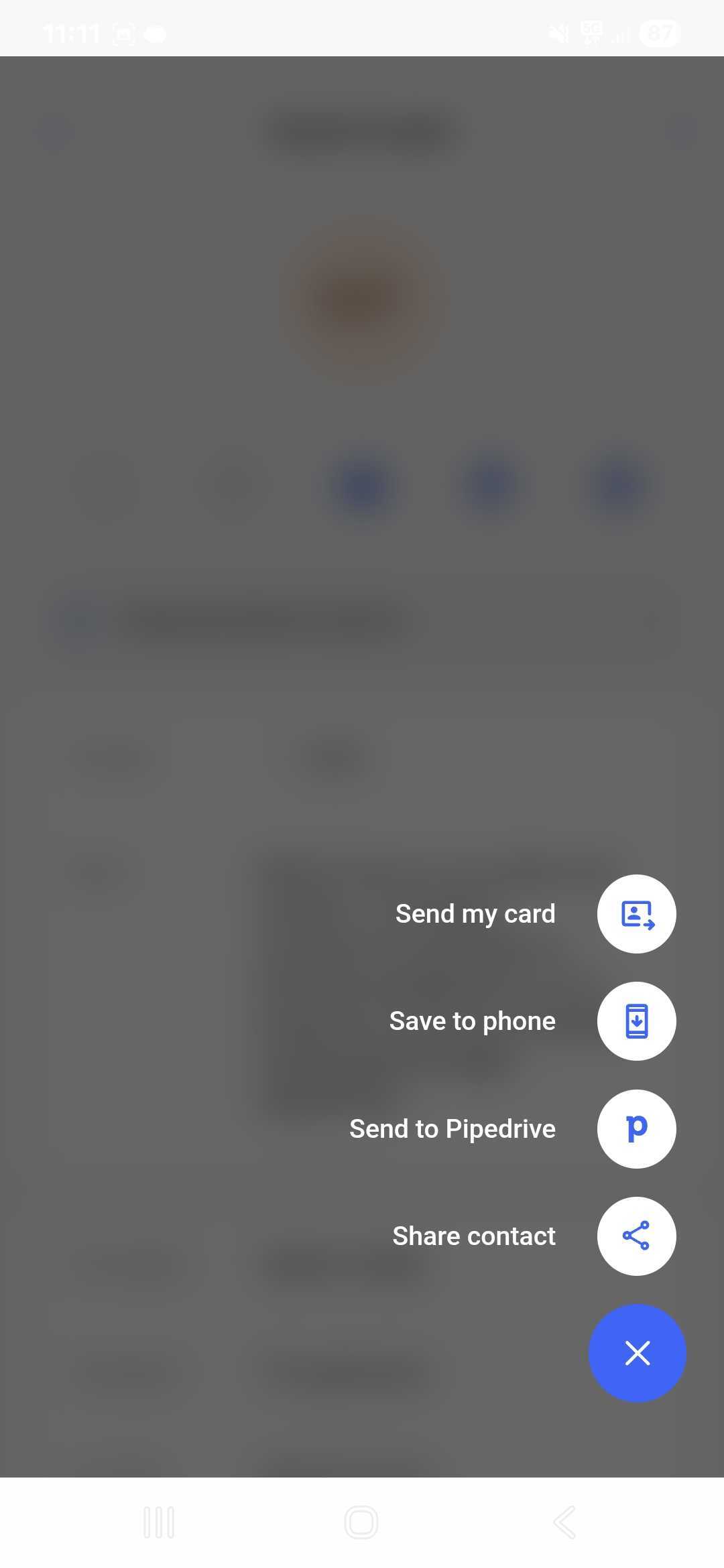
Tap on “Send to Pipedrive”. Upon successful sent, the app will show a green notification at the top.
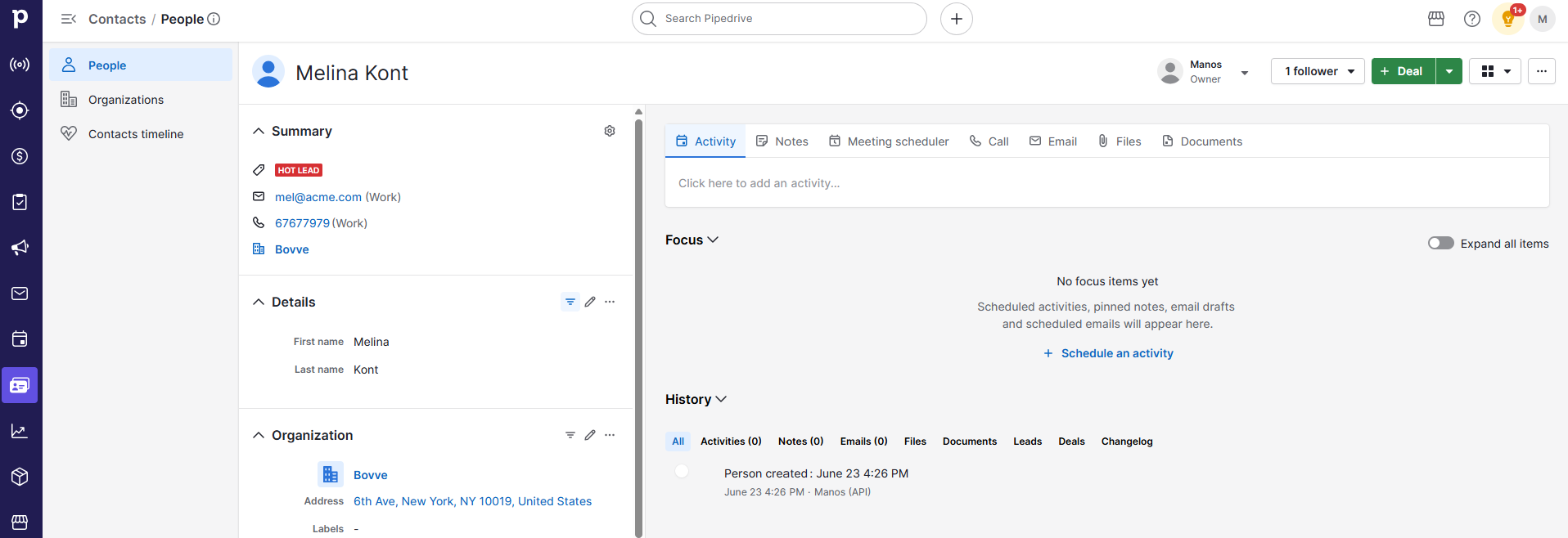
Go to your Pipedrive environment and find the exported contact in the Persons section.

Click on the specific Person record to browse its data.
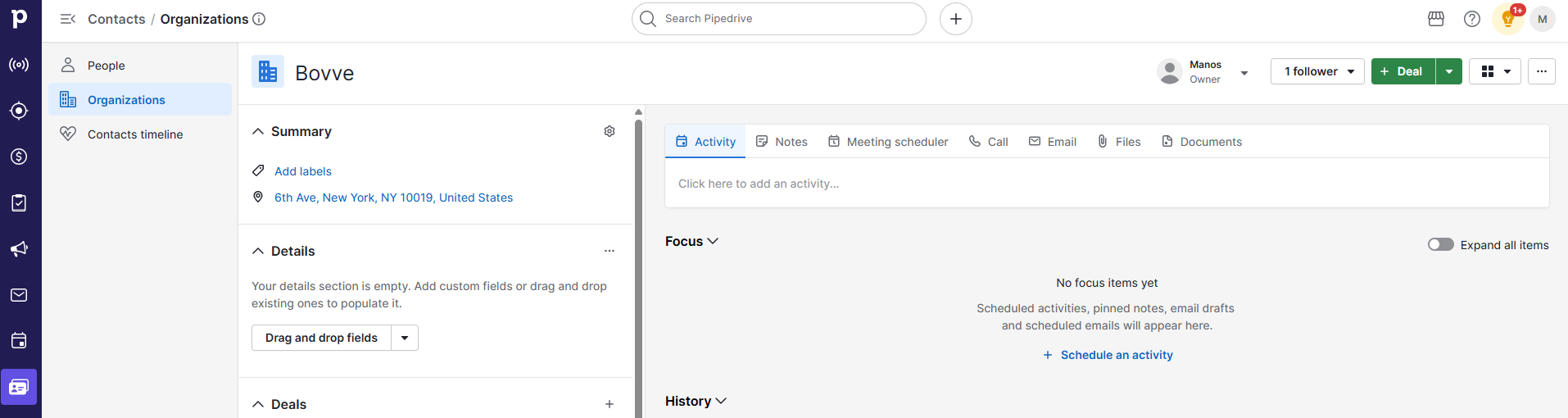
If the Organization of the Person does not exist in Organizations, an Organization Record is created and associated to the Person.
Autosend to CRM
Enable the toggle button “Auto export new leads to CRM”.
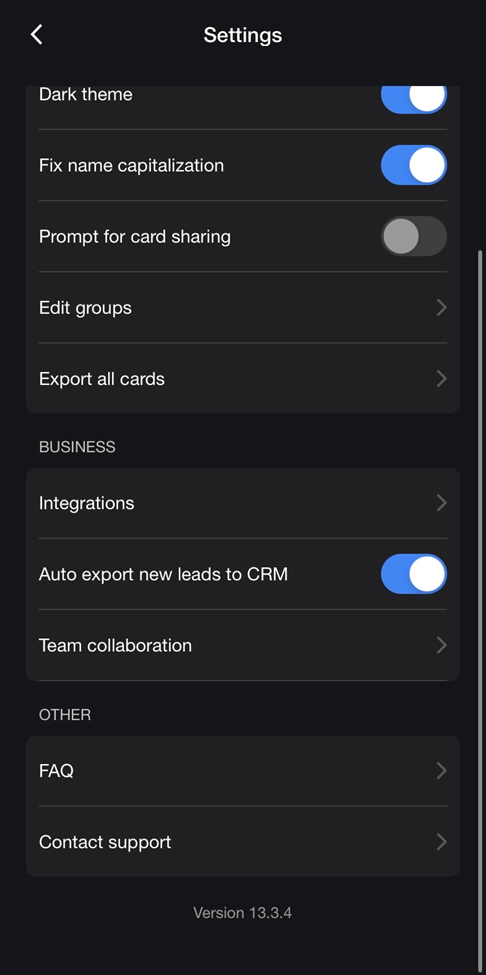
Note:
1. You need to be connected to at least one CRM.
2. Existing leads will not be sent automatically to CRM. From the point the user enables the auto-send and onwards, every new lead will be automatically sent.
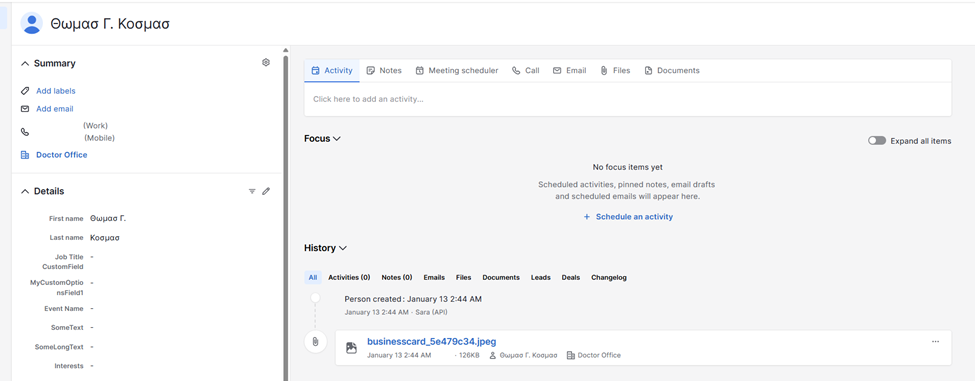
Images of leads/contacts on CRMs
Once a new Person is created in Pipedrive, we add a file to the contact’s Files list
Contacts -> People -> [NameOfContact] -> History -> Files.
Data Transmitted
The mapping of Covve Scan data to Pipedrive Person is the below.
Cove Scan field Pipedrive Person field Full Name Name Emails Emails Phones Phones Company - mapped to Pipedrive Organization org_id
Covve Scan field | Pipedrive Person field |
Full Name | Name |
Company | mapped to Pipedrive Organization org_id |
Emails | Emails |
Phones | Phones |
The mapping of Covve Scan data to Pipedrive Organization is the below.
Covve Scan field | Pipedrive Organization field |
Company | Name |
Name | Contact |
Address | Address |
The Contact is assigned to the logged-in Pipedrive user.