

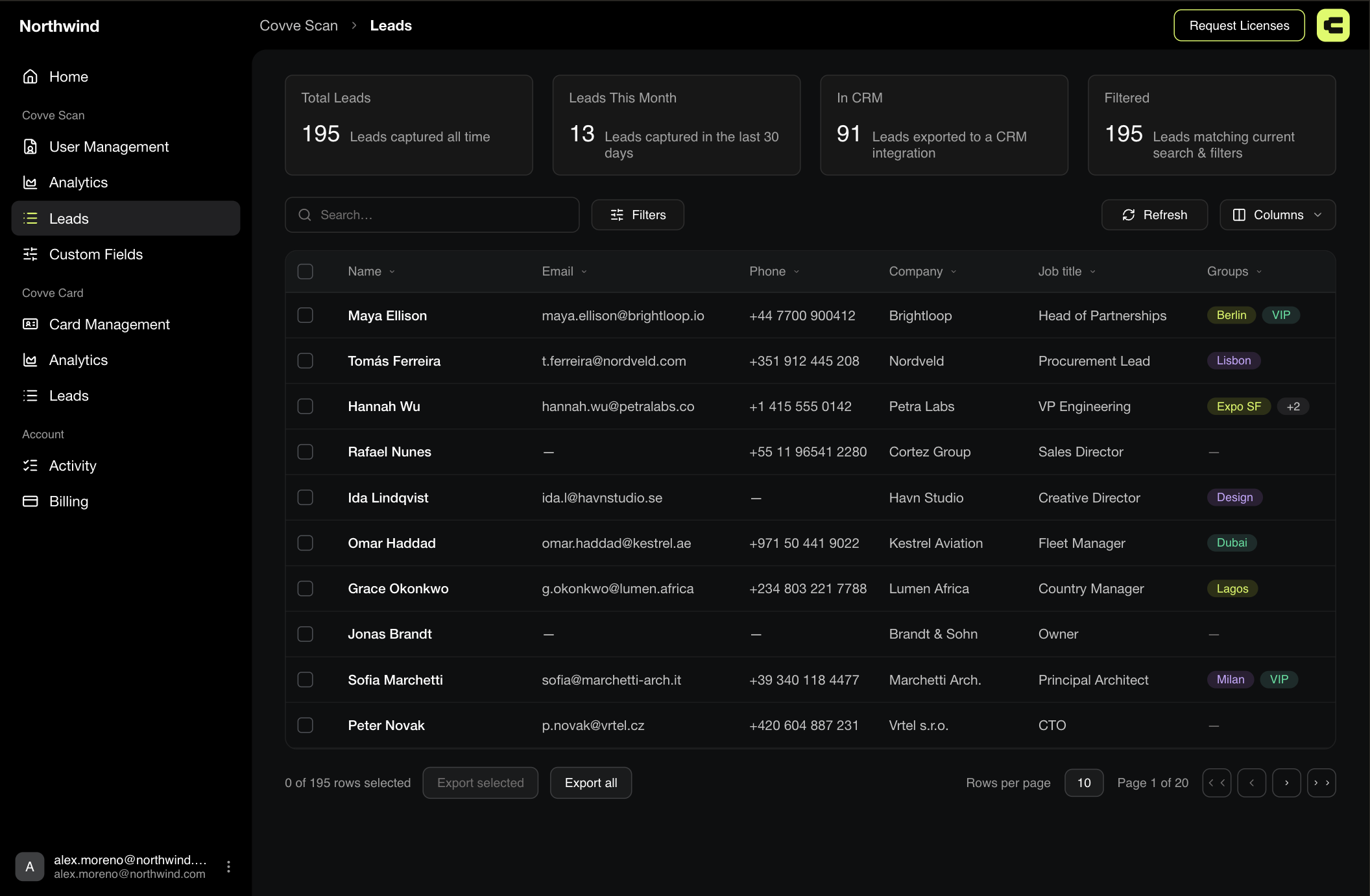
The four numbers at the top
Card | What it counts |
|---|---|
Total Leads | Everything captured, all time |
Leads This Month | The last 30 days, rolling. Not the calendar month, so on the 3rd it still reaches back into last month |
In CRM | Leads that reached a connected CRM |
Filtered | Leads matching what you have searched and filtered for right now |
Filtered is the one to watch while you work. It updates live as you narrow things down, and it tells you exactly how many rows an export is about to include.
What's in the table
Newest first. The columns are Name, Email, Phone, Company, Job Title, Groups, Website, LinkedIn, then Scanned By and Scanned On.
If your team uses custom fields, each one gets its own column automatically, sitting between LinkedIn and Scanned By in the order you defined them. See Create custom fields.
Two important columns:
Groups shows the tags on a lead, as coloured chips with a numbered chip when there are more than fit.
Scanned By is the email address of whoever captured it.
Only the first email, phone, and website appear in the table. A card with three phone numbers still holds all three, and you'll see them when you open it.
Open a lead
Click the name to open the lead in a side panel. Clicking anywhere else in the row does nothing, which catches people out.
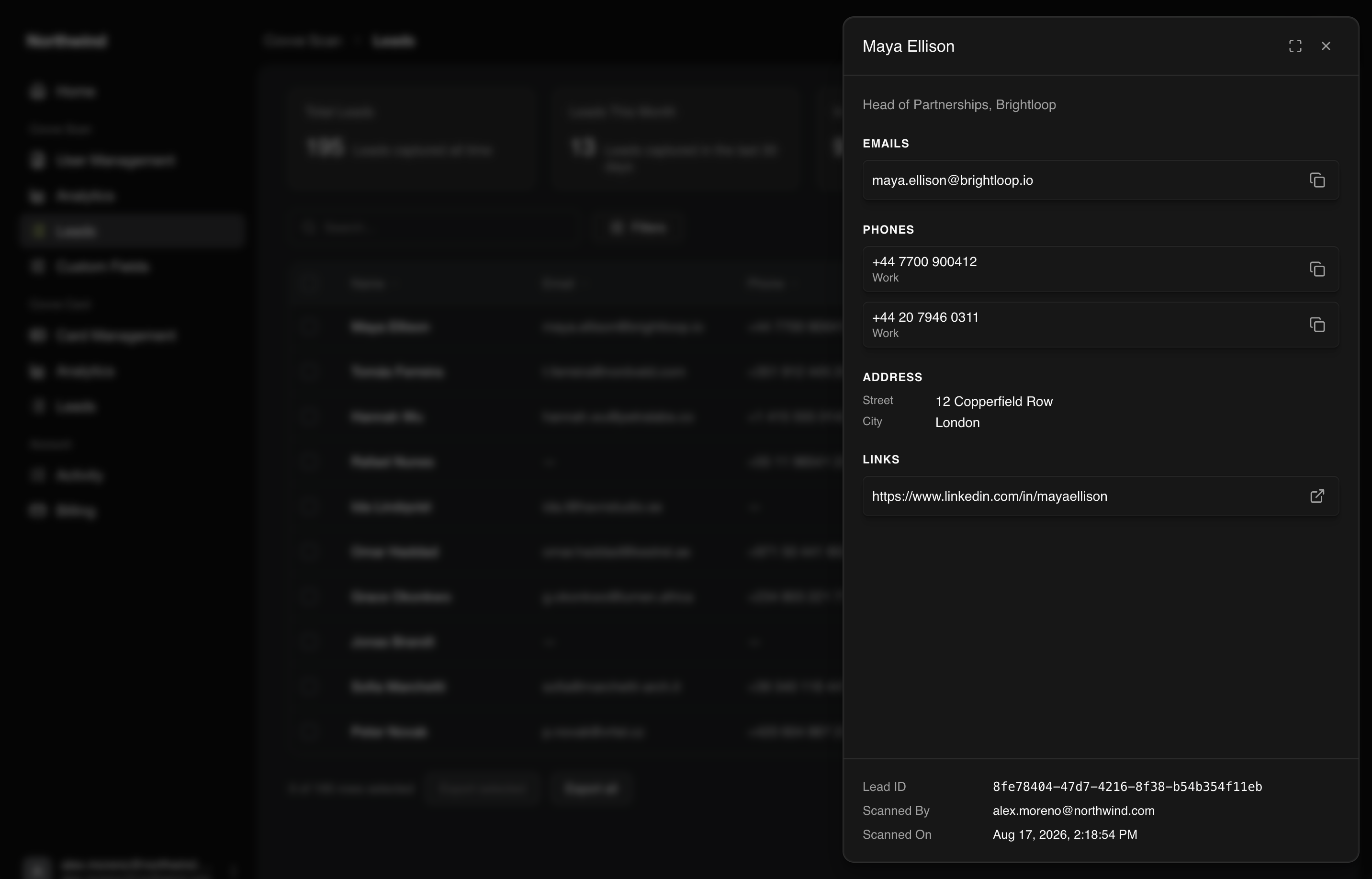
The panel shows everything the table doesn't: all emails and phones, the full address, links, groups, custom fields, notes, and an In CRM section listing which CRMs it reached and when. Copy buttons sit next to emails and phone numbers.
The portal is a read-only view of your team's leads. You can't edit a lead here, and you can't delete one. Corrections happen in the app, on the phone of the person who captured it. Everything on this screen is for finding, checking, and getting leads out.
Search
The Search box filters the table as you type, and it reaches further than it looks:
Names, companies, job titles, emails
The date as it's displayed, so typing
Mayfinds everything captured that MayCustom field values, matched on the label you'd recognise rather than the stored value
Find nothing and you get No results found for [your term] with a Clear search button.
Filters
Filters opens a panel with a badge showing how many are active, and Clear all to reset them.
Filter | Options |
|---|---|
CRM status | All / In CRM / Not in CRM |
Notes | All / Has note / No note |
Groups | One per tag in use |
Captured by | One per team member, listed by email |
Date range | From and To, with Reset |
Custom fields | Depends on the field: toggles offer On / Off, dropdowns list their options, text fields offer Has value |
CRM status only appears once a CRM is connected. See Send a lead to your CRM.
Sort and hide columns
Every column sorts. Click a header to sort, click again to reverse it.
Columns lets you hide the ones you don't need. Worth doing before an export, since a narrower table is easier to scan and easier to hand to someone else.
Refresh updates to the latest data and hovering it tells you when the screen last updated.
Paging
10 rows a page to start. Rows per page goes up in tens to a maximum of 100, and when a team has 100 or fewer leads in view you also get View All.
Who can see this screen
The Leads screen isn't restricted by role. Anyone who can sign into the portal can open it, and a Viewer can search, filter, open leads, and export exactly as an Admin can. Viewers are read-only across the portal, but since nothing on this screen changes a lead, there's nothing here for that restriction to bite on.
FAQ
Why can't I see a lead someone captured?
A lead reaches the portal on its own once that person's phone syncs it. If one is missing, the usual causes are that they aren't signed in on their device, their account isn't linked to your team, or the scan hasn't finished processing.
Can I edit or delete a lead in the portal?
No, it's read-only. Editing and deleting happens in the app.