

Sidebar section | Reports on |
|---|---|
Covve Scan | Business cards your team captures |
Covve Card | Your team's digital business cards, and the leads that come back from them |
Analytics for Covve Scan
How much your team captures, how complete it is, and how much of it reaches your CRM.
Metric | What it counts |
|---|---|
License Utilisation | How many purchased licenses are actually being used |
Active This Month | Team members who captured anything this month |
Avg Leads per User | Total leads divided by users |
Daily Avg | Leads captured per day across the period |
Scan Volume | How much capturing is happening overall |
Leads in your CRM | How many captured leads reached your connected CRM |
Pipeline-Ready | Leads complete enough to act on |
CRM Sync Speed | How quickly leads reach the CRM after capture |
Monitor what the team captured, who captured it, and how much of it is usable. Every chart obeys the date range at the top right, so set that first.
Set the date range
Use the teammate filter to narrow to one person, or leave it on the whole team.
All time for the lifetime picture. This month for the current push.
You will see charts for your pipeline, capture by weekday, and your team's onboarding funnel
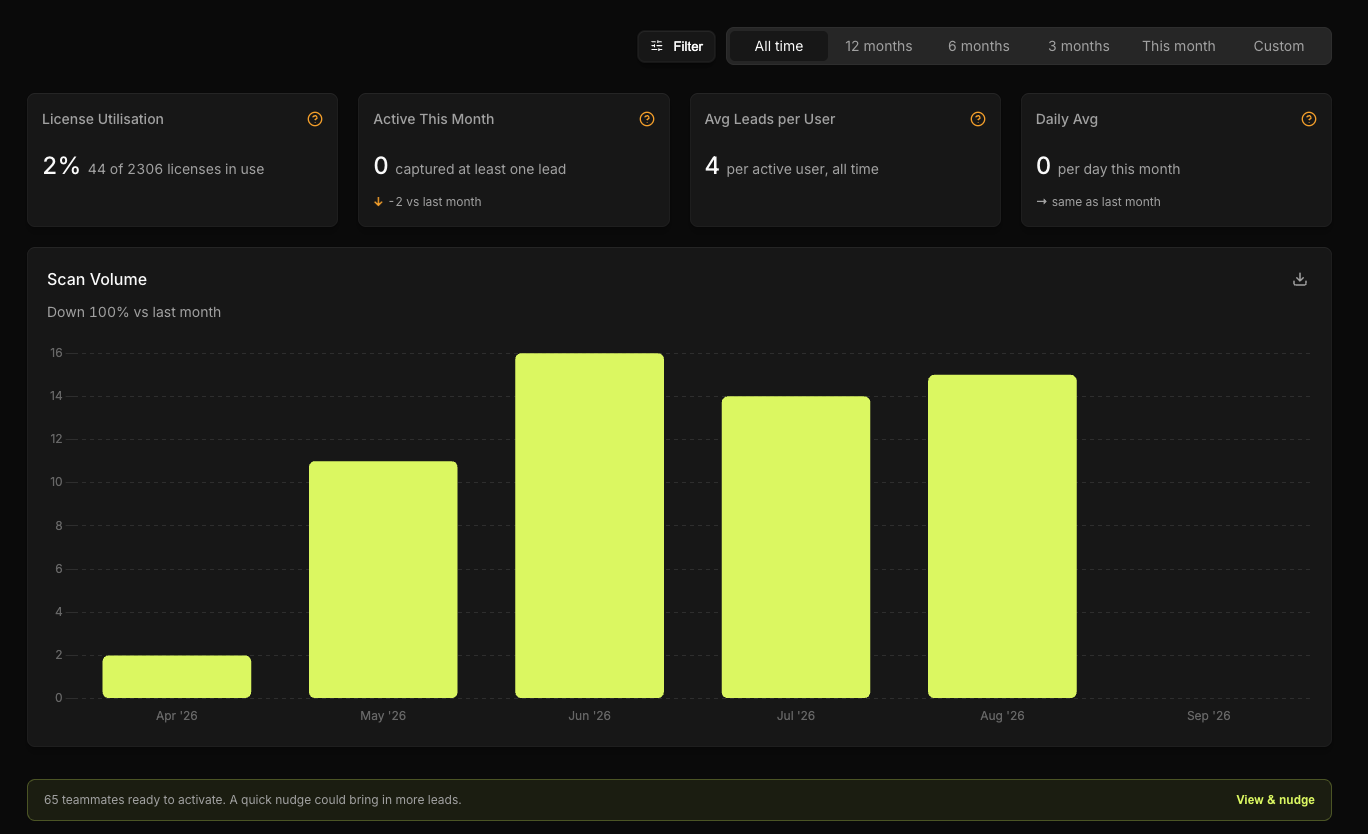
Covve states those healthy ranges itself. Hover any metric and it tells you what it counts and what good looks like.
Analytics for Covve Card
Monitor how often you digital cards get seen, and what came back.
Metric | What it counts |
|---|---|
License Utilisation | Share of purchased card slots assigned to a team member |
Active This Month | Card holders with at least one profile visit in the last 30 days |
Avg Profile Visits | Average total visits per active card holder |
Daily Avg (30d) | Profile visits the whole team receives per day |
Lead Rate | Share of profile views that resulted in a lead |
Unissued Cards | Cards paid for but not yet assigned to anyone |
CRM Sync Rate | Share of those leads pushed to your CRM |
Alongside these you get an activation funnel, a profile completeness breakdown, monthly profile visits, leads captured over time, lead data quality, and top job titles among the people who got in touch.
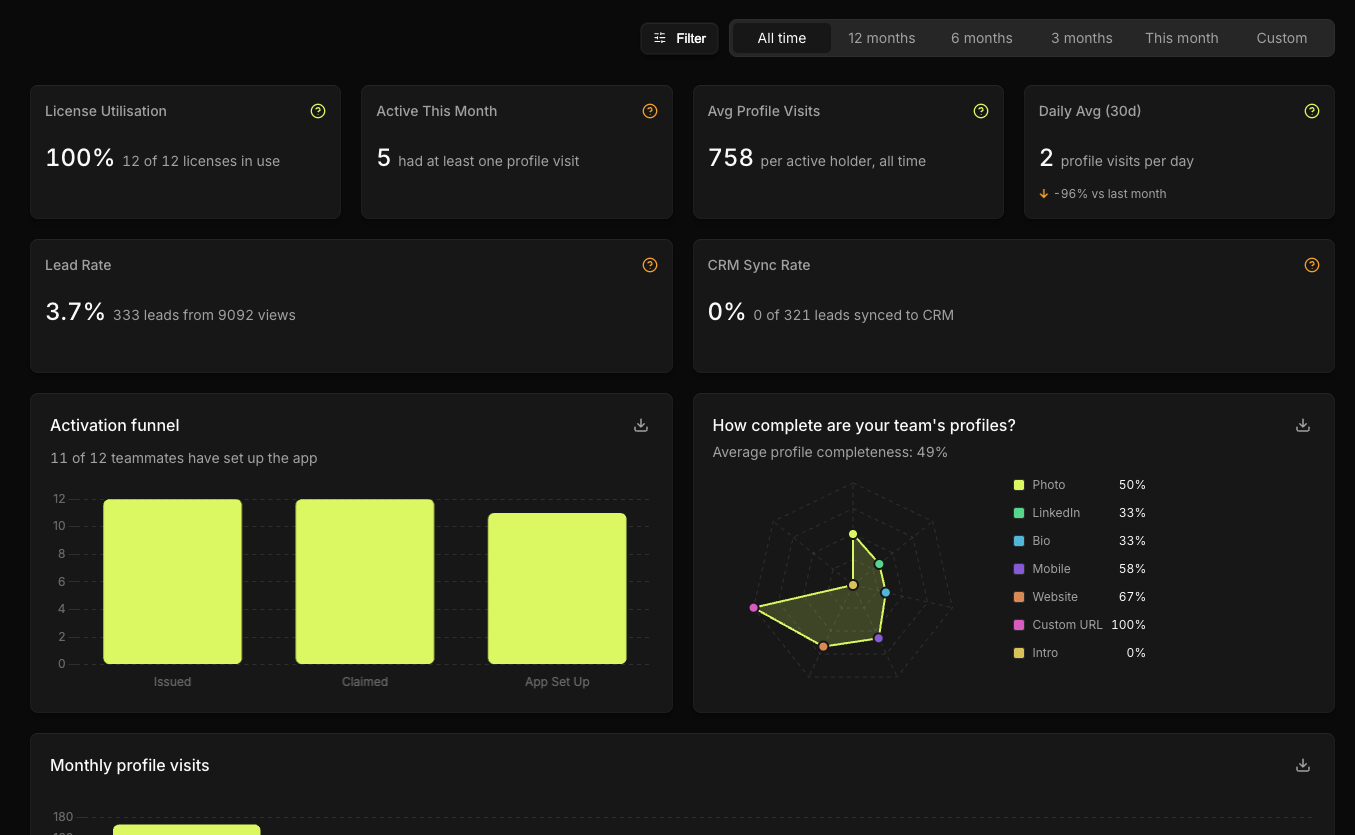
Unissued Cards is the one to act on first.
A card that's paid for and unassigned generates nothing at all. Every unissued slot is a team member without a digital card, and you fix it in Card Management.
Exporting the numbers
Every chart exports on its own. The download icon in the top right of a chart card takes that chart's underlying data out as CSV, and hovering it says Export to CSV. The team performance card offers Export all to CSV, covering the whole leaderboard rather than the page you're looking at.
The file is named after the chart, and you'll see Exported to CSV when it's ready.
The Leads screen has its own counters
Worth knowing so you don't go to Analytics for something quicker to hand. The Leads table carries Total Leads, Leads This Month, In CRM, and a live Filtered count that responds to your search and filters. See View, search, and filter leads.