

Leads arrive in Covve two ways. Usually you capture them, you point your camera at a card, a QR code, or an event badge. Sometimes they come to you, someone scans the QR on your own card, lands on your profile, and sends you their details without you doing anything at all.
Whichever route a lead takes, it ends up in the same place, reviewed the same way.
Quick start
Tap Scan on the home screen.
Choose Card, QR code, or Badge.
Fill the frame and hold steady.
Check what Covve read.
Tap Save.
Paper business cards
The most common capture, and the one the scanner opens on by default.
Tap Scan, then make sure Card is selected. It's the middle option, and it's selected for you unless you change it.
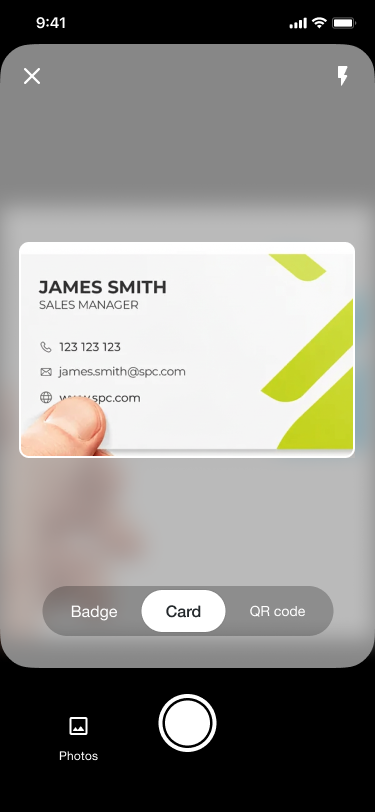
Fill the frame with the card and hold steady. Covve captures it and starts reading.
Check the fields it filled in, then tap Save.
A photo you already took
If you photographed a stack of cards at an event and want to deal with them later, you don't have to re-shoot them.
Open the scanner and tap the gallery icon, just to the side of the shutter button, then pick the photo. Covve reads it exactly as if you'd scanned it live.
The first time you do this, your phone asks permission to reach your photos. If you decline and change your mind, Covve shows "Photos access required" with a shortcut to your settings.
The back of a card
Plenty of cards carry a second language, a QR code, or extra numbers on the reverse. Open the scanned card, swipe left on the image, then tap Add back side. You can either scan the details on the back, or capture it as a photograph if it's a logo or something you just want to keep.
Tips for a clean read
Put the card on a surface with a plain background rather than holding it in your hand.
Avoid glare. Angled light across a glossy card is the most common cause of a poor read.
Get the whole card in frame, edge to edge. A cropped card loses whatever was cropped.
QR codes
Choose QR code in the mode picker and point at the code.
What you get back depends on what the code contains. Many QR codes on business cards hold full contact details, and Covve turns those straight into a lead. Others are just a link to a website.
If Covve gets a link rather than contact details, it tells you: the link goes into the Web field, and a message appears explaining "Why am I seeing just a link?" The lead is still created, and you can fill in the rest yourself.
If the code isn't one Covve can read at all, you'll see "QR code not supported" with the option to try again.
Not every QR code is readable, and that's usually deliberate.
Event badges in particular often carry a code locked to the organiser's own lead-retrieval system.
Event badges
Choose Badge in the mode picker. The frame changes to a tall shape that matches how badges hang.
Badge capture reads the printed information on the badge: name, company, job title. It doesn't read the QR code, which is why it still works when that code is locked to the event organiser.
Capture the whole badge, not just the code, and make sure the name and company are legible.
Scanning locked event badges covers this properly
How the enrichment works, what to do about glare and lanyard clips, and why a badge sometimes comes back with less detail than you expected:
Working offline
Trade-show wifi is unreliable, so scanning doesn't depend on it.
Cards, QR codes, and badges all capture with no connection at all. Covve saves each one to your device and when you reconnect, everything processes on its own, there's nothing to press.
Scanning cards in other languages
Covve recognises languages automatically, and reads 60 or more of them, so you can scan cards in different languages one after another without touching your settings.
Why didn't my scan work?
The lead says "Scan failed - add the details manually." Covve couldn't read enough to build a lead. Usually glare, a cropped edge, or an unusually styled card. Retake it, or add the details yourself.
A QR code came back as just a link. The code held a website rather than contact details. The link is in the Web field; fill in the rest by hand.
"QR code not supported." Covve can't read that particular code. If it's an event badge, the code is probably locked to the organiser, use Badge mode on the printed details instead.
A badge came back with only a name. The printed text needs to be legible for Covve to do more with it. Reposition the badge away from the lanyard clip and out of direct glare, and retake.
Nothing is processing. Check whether you're offline. Scans queue up and complete once you're back online.
FAQ
Can I scan both sides of a card?
Scan the front, then swipe left on the image and tap Add back side.
Do I need to pick a language before scanning?
No. Recognition is automatic.
Does scanning work without wifi?
Yes. Scans complete when you're back online.