

At many events, attendee badges are "locked" by the event organizer: the QR code on the badge only works with the organizer's paid lead retrieval system, so scanning it won't give you the attendee's contact details.
With Covve event badge scanning, you don't need the organizer's lead retrieval system. Simply scan the badge itself. Covve Scan reads the visible information on the badge (name, company, job title) and then automatically enriches the contact with additional details such as email, LinkedIn, and company information.
Keep in mind: Locked badge scanning is available on Pro and Business plans.
Quick start
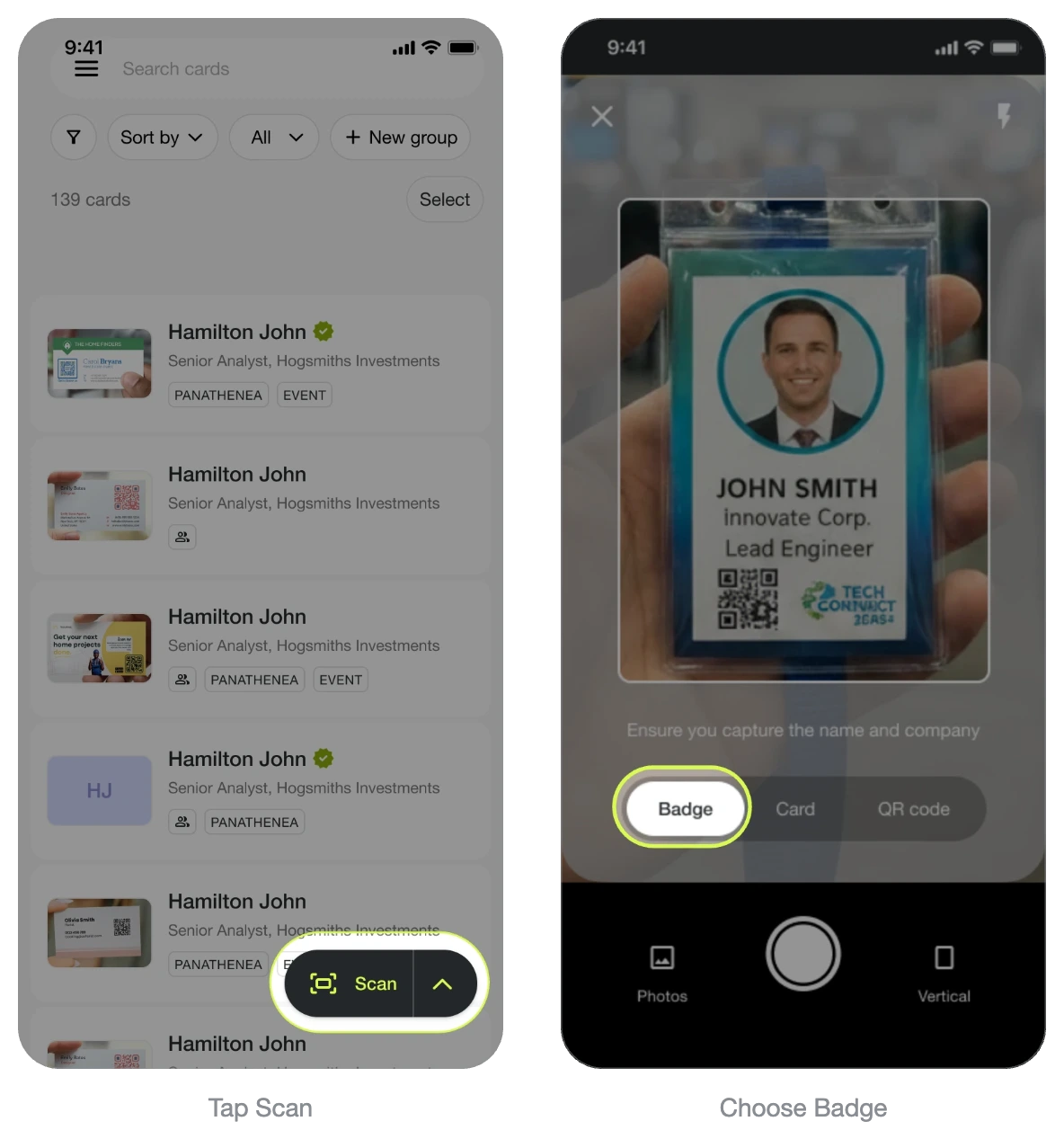
Tap Scan > select Badge
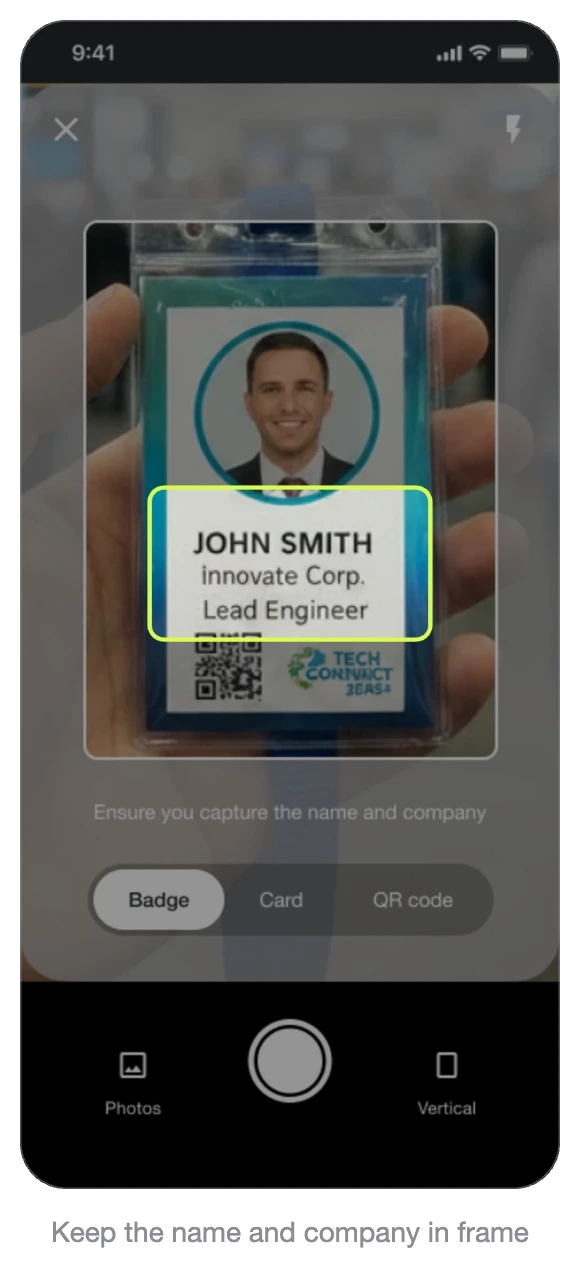
Capture the full badge, not just the QR code
Make sure the name and company are readable
Wait a few seconds while the contact is enriched
Review and Save
How to scan a locked badge
1. Open the scanner and select Badge mode
From the Covve app homepage, tap the Scan button on the bottom right, then select Badge at the bottom of the scanner.
2. Capture the badge
Point your camera at the badge and take the photo. The attendee's name and company must be clearly readable in the frame, they're required for enrichment to work.
Capturing only the badge's QR code isn't enough, since locked QR codes don't contain contact details.
3. Wait for processing, then review and save
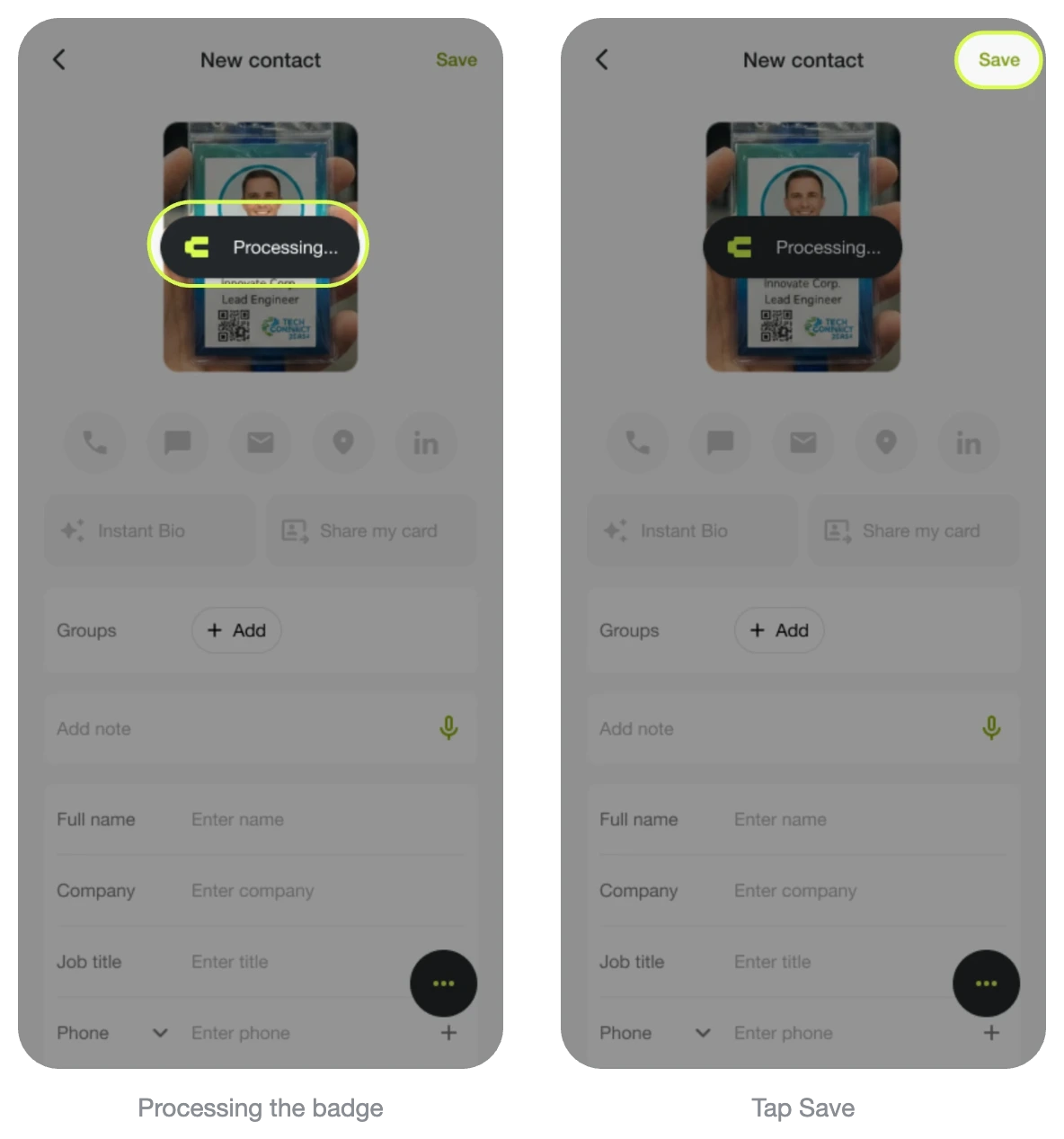
Covve Scan reads the badge and starts building the contact. This takes a few moments.
Once complete, the contact is created from the badge details and enriched with anything else available, such as email, LinkedIn, and company details. Review it, add the contact to a group or a note if you'd like, then tap Save.
Tips for best results
Make sure the name and company are readable in the photo. These are required for enrichment.
Hold the phone steady and avoid glare from the badge's plastic holder.
Badges work best in vertical orientation.
If the badge is worn, creased, or partially covered by the lanyard clip, reposition it so the text is unobstructed before capturing.
How enrichment works
Once the badge is scanned, Covve Scan uses the name and company captured from the badge to find publicly available contact details and complete the contact profile.
Captured from the badge | Enriched personal | Enriched company |
• Full name | • Email address | • Website |
Enrichment depends on publicly available data. Personal phone numbers are not enriched. If no additional details are found, the contact is saved with the information captured from the badge, and you can fill in the remaining fields manually.
Why wasn't my contact enriched?
Enrichment works for most badges, but a few situations can limit the results:
Name or company not readable. Both are required. Retake the photo with the full badge in frame.
Only the QR code was captured. Locked QR codes don't contain contact details. Capture the whole badge instead.
Small or uncommon companies. Less public information is available, so fewer fields can be filled in.
No public profile. If the person has little or no online presence, only the badge details are saved.
Poor connection. Enrichment needs internet. You can still scan offline, badges are processed and enriched once you're back online.
In all cases the contact is still saved with whatever was captured from the badge, and you can edit or complete it manually.
FAQ
Can I scan a badge photo from my gallery?
Yes. In the scanner, tap Photos and select an existing image of the badge. This is handy if you photographed badges during the event and want to process them later.
What if the badge has a QR code
If the QR code is locked by the event provider, it won't contain contact details, so use Badge mode instead of QR code mode. If the badge has an open QR code (e.g. a vCard or LinkedIn link), you can use QR code mode to capture it directly.
Can I sync badge-scanned contacts to my CRM?
Yes. Contacts captured via badge scanning behave like any other contact in Covve Scan and can be synced to your connected CRM manually or via auto-export.
Will enriched data overwrite my existing CRM records?
No, duplicate records are identified in the CRM. When a matching contact already exists in your CRM, Covve fills in empty fields but does not overwrite fields that already have a value.
Does badge scanning work offline?
Yes. Trade-show Wi-Fi is often unreliable, so you can keep scanning badges without a connection. Your scans are saved and enriched automatically once you're back online.