

Best when you have a few details and want them exactly right, an email spelled out to you, or a name you'd rather not have misread.
Add with voice
Best straight after a conversation, while you still remember it. Faster than typing, and it captures the things a card never carries.
From the home screen, open the scan menu and select Add with voice.
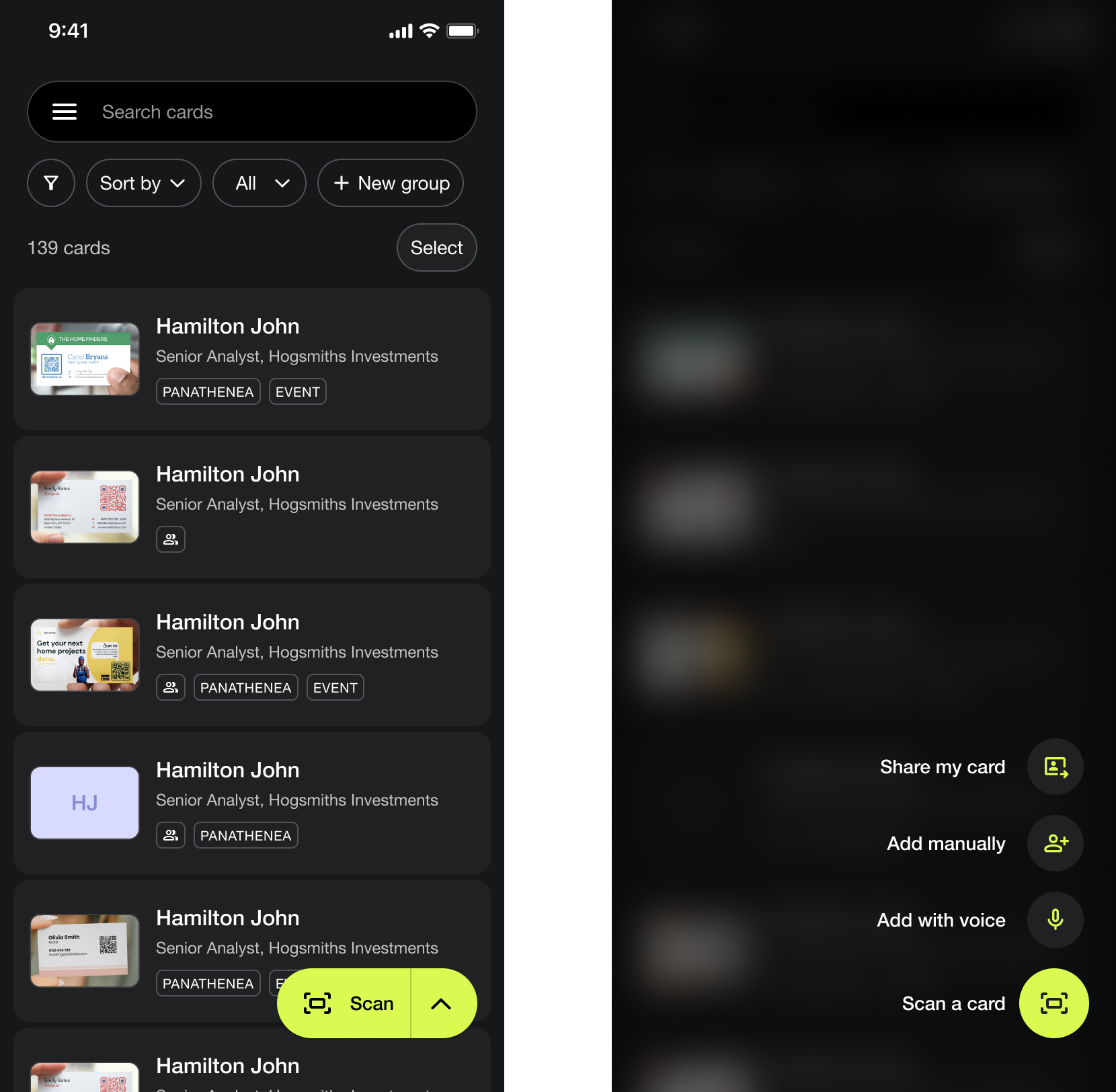
Describe the person out loud, as you would to a colleague: "I met Henry Johnson, Head of operations at Royal mission. His email is hjohnson@royalmission.com, and he asked me to send over the pricing sheet."
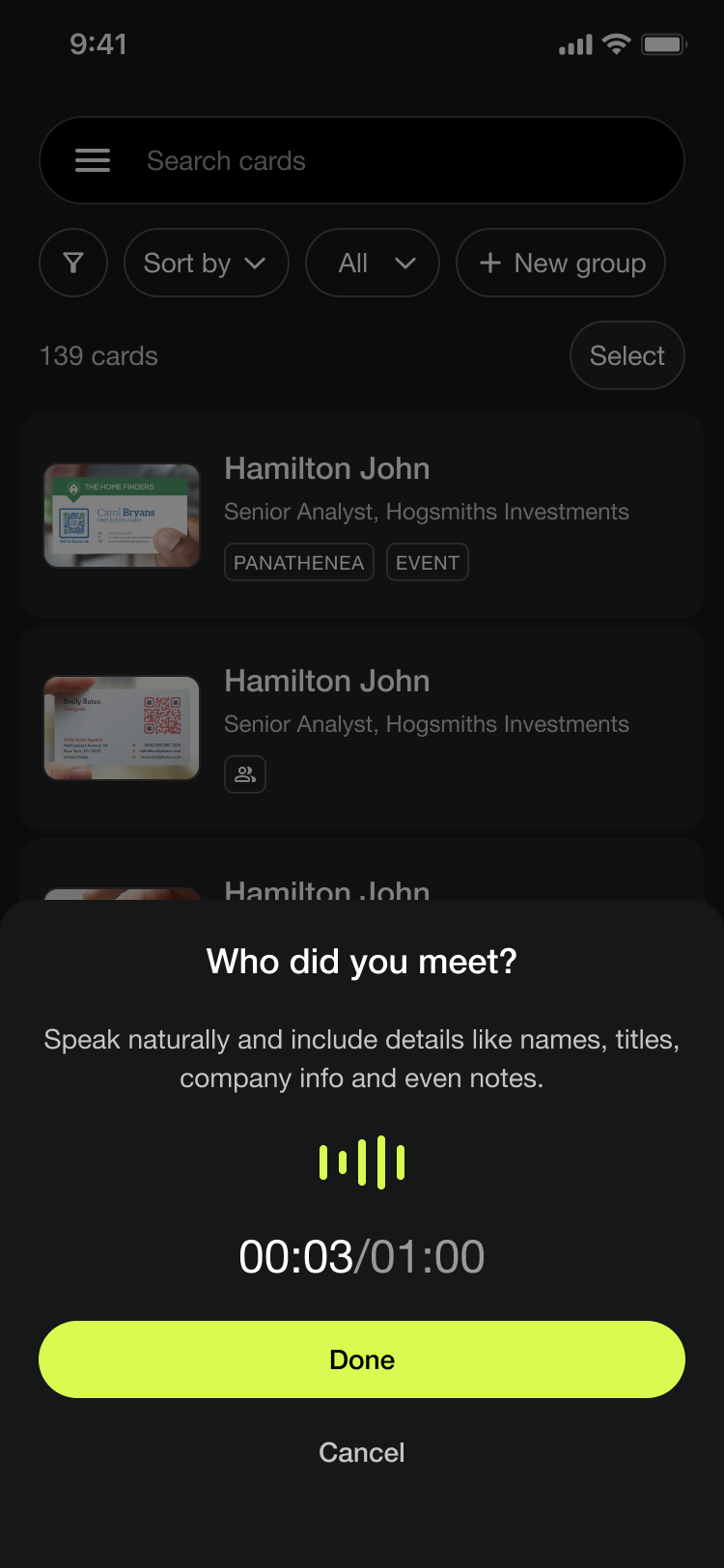
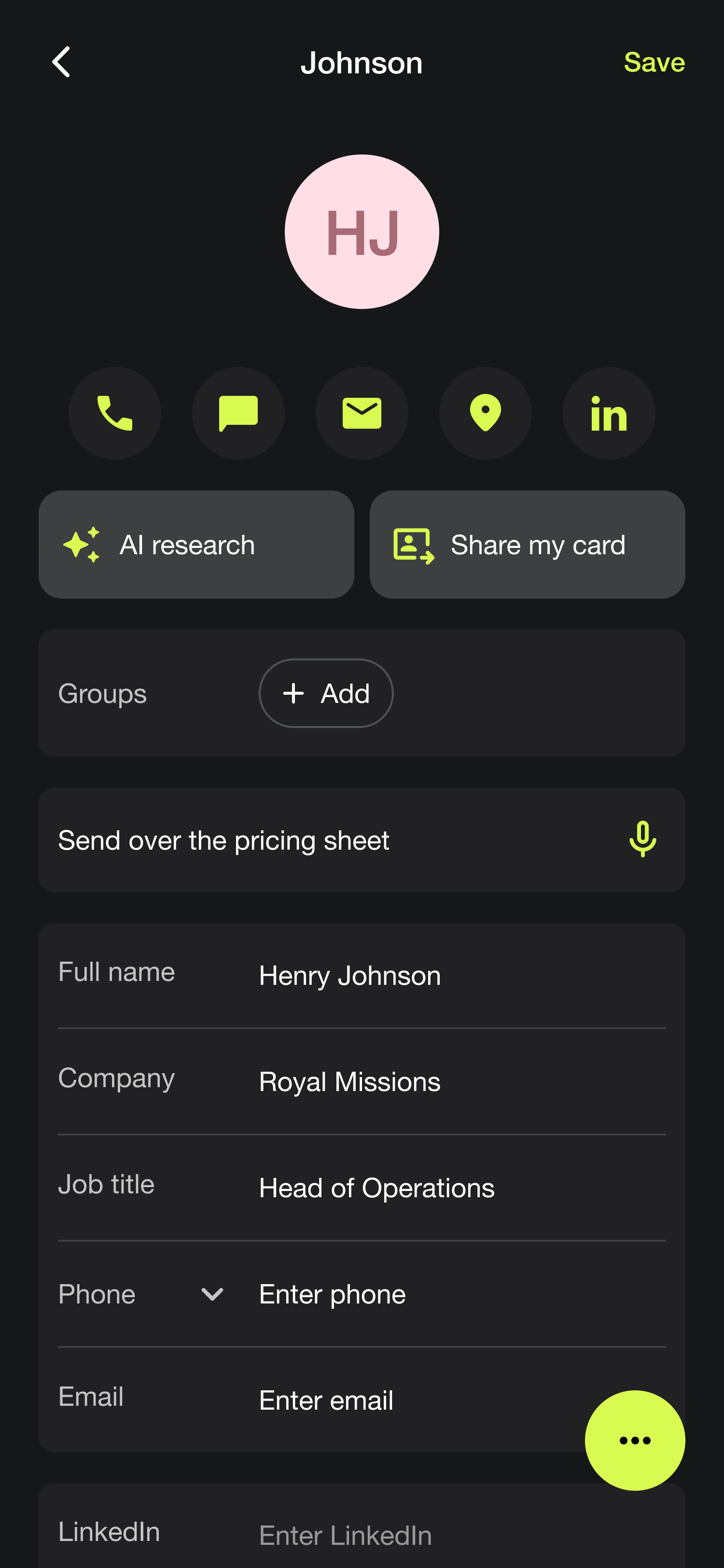
Covve builds the lead from what you said. Check it, then tap Save.
Voice needs a connection
It's the only capture method that won't work offline. Scanning and manual entry both work with no signal at all, so if you're somewhere without one, type the details in instead.
Add manually
Best when you have a few details and want them exactly right, an email spelled out to you, or a name you'd rather not have misread.
From the home screen, open the scan menu and select Add manually.
Fill in what you know. Nothing is required except the parts you care about.
Tap Save.