

Available on Pro and Business.
All of it happens in the app, under Menu → Team collaboration.
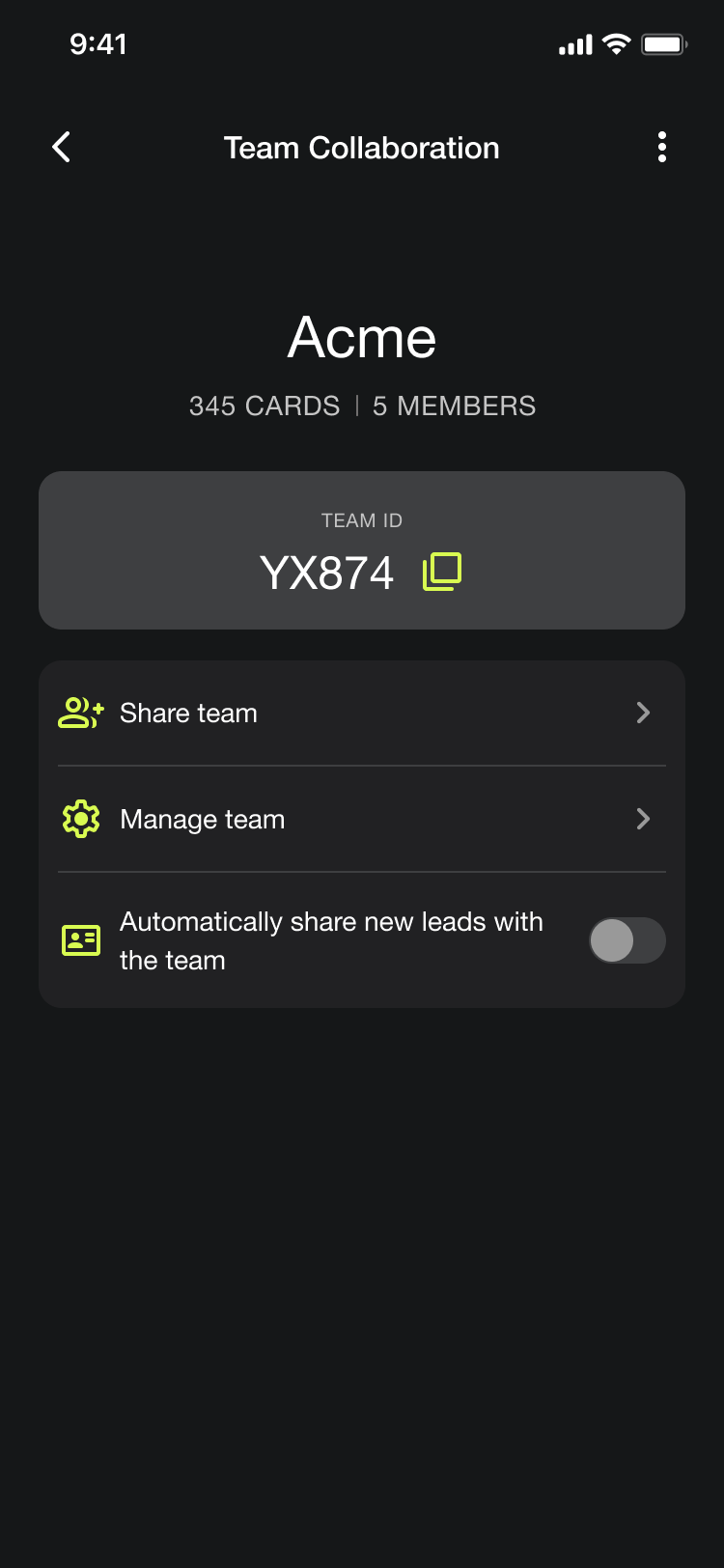
The Team collaboration screen
Once you're in a team, this screen is your dashboard:
The team name, with a count of CARDS and MEMBERS.
TEAM ID in a box of its own. Tap it to copy. This is what someone needs to join.
Automatically share new leads with the team, a toggle every member controls for themselves.
Owners also get Share team and Manage team.
Add someone
Tap Share team and send the invitation however you like, or copy the TEAM ID and pass it on. They enter it in their own app. See Set up or join a team.
Manage team
Manage team lists everyone in the team with their name, email, and how many leads each person has contributed. The owner carries a Team owner badge.
Tap the ⋮ next to someone to open Options:
Option | What it does | When it appears |
|---|---|---|
Make team owner | Promotes a member to owner | On a member |
Remove team owner | Demotes an owner back to member | Only when the team has more than one owner |
Delete member | Removes them from the team | On members |
Make a second owner early. A team with one owner is a team that loses control of itself when that person is on leave or leaves the company. You can't promote anyone once you've lost access, and the option to demote an owner only appears when there's more than one.
Who can see the team's cards
When the team is set up you choose a Team mode, and the app is blunt about it: "Set who can access team cards. You won't be able to change this later."
Mode | What it means |
|---|---|
Owner-only access | Only owners can access team cards |
All-member access | All members can access team cards |
This one is permanent, so decide it deliberately. Owner-only suits a team where captures feed a manager and reps don't need each other's leads. All-member suits a team working the same event or the same accounts. Getting it wrong means starting a new team, not changing a setting.
Leaving or closing the team
From the ⋮ menu on the Team collaboration screen:
Leave team, if you're a member.
Delete team, if you're the owner.
What happens to the leads afterwards is worth reading before anyone does either. See What happens when a member leaves.
Help from inside the app
The same ⋮ menu has Frequently asked questions and Give feedback, so a member with a question doesn't need to come to you first.
This is not the same as portal licenses
Two separate systems, and mixing them up is behind most team confusion:
| App team collaboration | Portal licenses |
|---|---|---|
Set up in | The app, with a Team ID | The portal, by an Admin |
Roles | Owner, member | Admin, Viewer, Member |
Controls | Which leads the team shares and sees | Who is paid for and what they can reach |
A license gives someone access to Covve. Joining a team with the Team ID is what makes their captures shared. Someone can have one without the other, which is exactly the situation that generates a support ticket. See Purchase and activate licenses.
The Admin of the Portal has access to all the leads regardless of the Teams setup